
Our Discord Server
Why Discord? Basically I wanted a centralized place for all ATTN Seattle athletes to be able to chat, share, and learn. I like the concept of decentralization so everything doesn’t live in one spot (for a number of reasons). Discord is something I was using for a number of different subjects but thought it would be a great place for us.
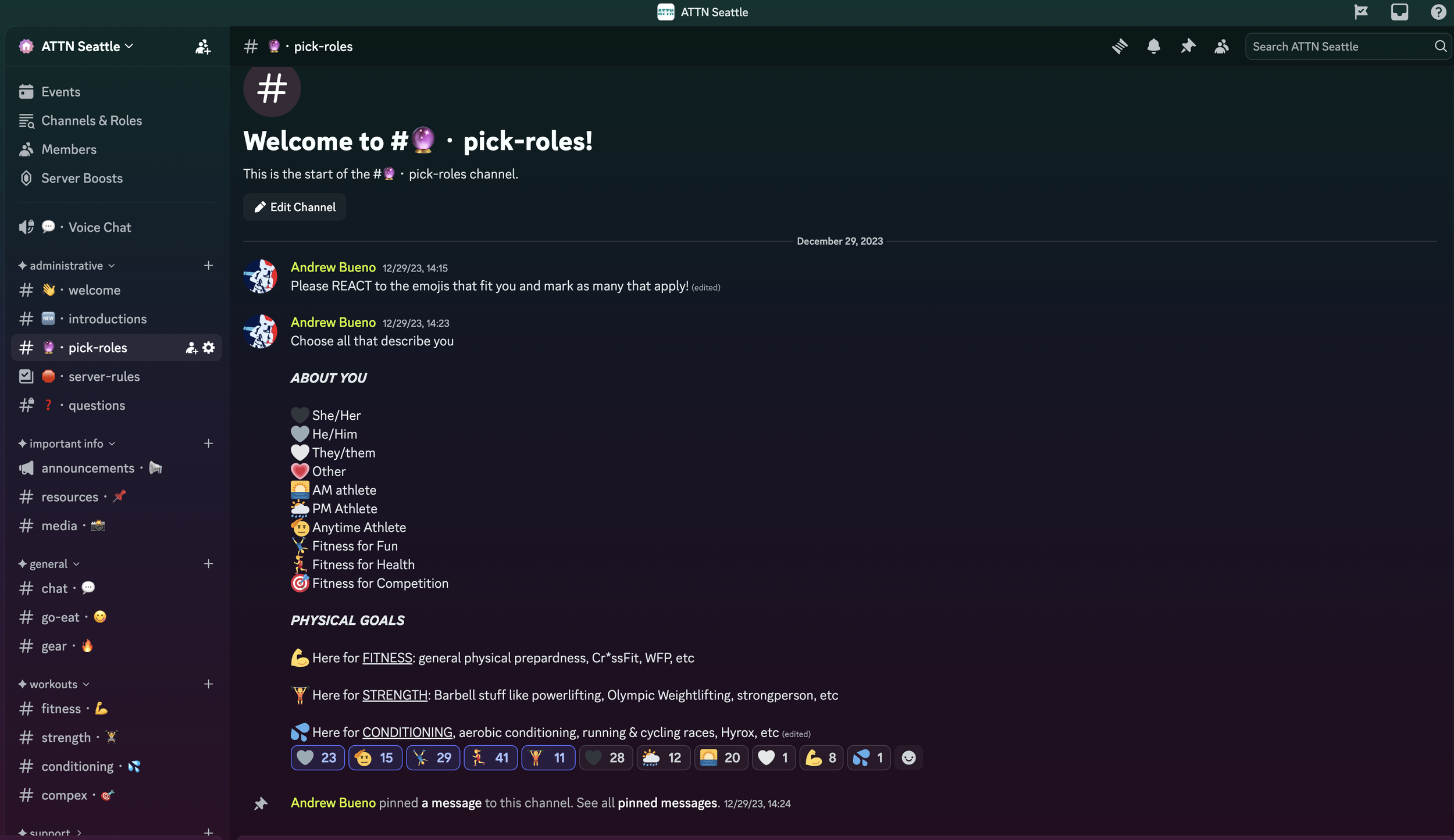
Setup & Basics
Download/Sign Up:
Get the app (desktop/mobile) or use the web version, then register.
Navigation:
Leftmost column: Your servers (communities).
Next column: Channels (topics/rooms) within the selected server.
Home (Discord icon): Direct Messages and server activity.
Friends tab: Manage contacts and requests.
Your Profile:
Click your profile icon (bottom left) to change status (Online, Idle, DND, Invisible) and access Settings.
[See this video for a brief overview]
Servers & Channels
Join our Server: USE THIS INVITE LINK FOR ATTN!
Channels:
Text (#): For typing, sharing files/links; use formatting like bold or italics (Markdown).
Voice (Speaker icon): Click to join for audio/video chat and screen sharing. We don’t use these.
Chatting & Communicating
In Text Channels: Type in the message box at the bottom and hit Enter.
In Voice Channels: Click to join; your mic is live (toggle mute/unmute) and you can turn on video or share your screen.
Direct Messages (DMs): Click the Discord icon (Home) to see DMs or use the Friends tab to find users by their
username#1234to add and message them privately.
Key Features
Roles & Permissions: Server admins assign roles (e.g., Moderator, Member) to control what users can do.
Notifications: Manage settings in User Settings (cog icon).
Apps: Add bots and integrations for extra fun and functionality.
